


5 Pro Ways to Customize Google Maps (2026 Guide)
Unlock the full potential of Google Maps! Learn 5 easy ways to customize your vehicle icon, use emoji lists, enable dark mode, and use cloud-based styling in 2026.
 Rajeev
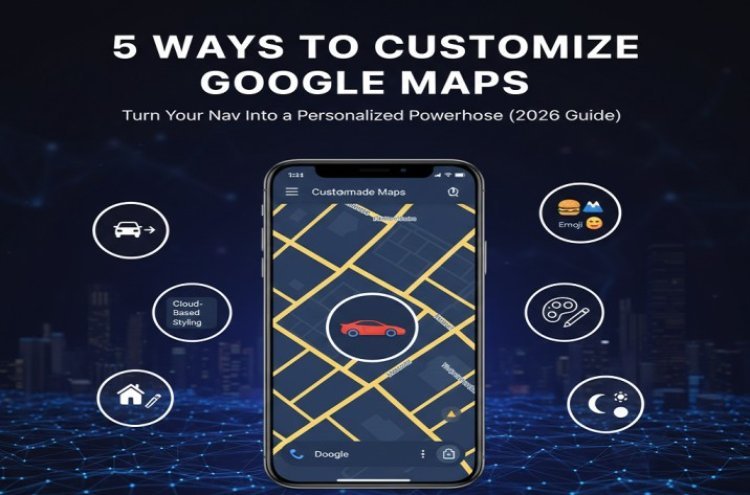

Google Maps is no longer just a digital atlas for finding the nearest coffee shop; in 2026, it has become a highly tailorable productivity powerhouse. Whether you want to turn your daily commute into a personalized experience or design a branded map for your business, the platform offers features that many users never touch.
Here are 5 unique and powerful ways to customize Google Maps to suit your lifestyle.
1. Swap the "Blue Arrow" for a Custom Navatar
Why stick to a generic blue dot when you can drive in style? Google Maps allows you to change your navigation icon (or "navatar") to something that feels more personal.
-
How to do it: Start your navigation. Once the trip begins, tap the blue arrow (your current location). A menu will pop up with several vehicle options, including a sleek red sedan, a yellow SUV, and a green pickup truck.
-
New for 2026: Some vehicle options now allow you to customize the color themes directly, ensuring your digital ride matches your real-world car or your mood.
2. Organize Your World with Custom Emoji Lists
Standard bookmarks can get cluttered. One of the best ways to customize your map’s visual language is by assigning specific emojis to your saved lists.
-
The Customization: Go to the "You" (formerly Saved) tab and start a new list. Tap "Choose icon" and select any emoji.
-
Pro Tip: Use ???? for your "Top Burger Joints" or ⛰️ for "Future Hiking Trails." These emojis will then appear directly on the map as pins, making it incredibly easy to scan your surroundings for your favorite spots.
3. Use Cloud-Based Styling for a Branded Look
If you are a developer or a business owner, you can move beyond the standard "Default" and "Satellite" views. Cloud-based maps styling allows you to customize almost 100 individual map features without touching a line of code.
-
What you can change: You can adjust the density of points of interest (POIs), change the color of the water, or hide specific road networks to create a "monochrome" or "retro" look that fits your brand.
-
The Setup: This is managed through the Google Cloud Console, where you can create a Map ID and use a no-code style editor to publish your custom theme across your apps or website.
4. Personalize with Private Labels
Sometimes, a place doesn't have a formal name on the map, or you want to give it a name only you can see. Private Labels allow you to rename any coordinate or address.
-
How to do it: Tap on any location or drop a pin. Select "Label" from the bottom menu and enter a name like "Grandma’s Secret Entry" or "Meeting Spot 1."
-
SEO Benefit: These labels show up in your personal search suggestions, making it much faster to navigate to non-traditional locations.
5. Force "Dark Theme" for Better Visibility
For many, the standard light mode is too bright, especially during long night drives. You can customize the app to always stay in Dark Theme, which not only reduces eye strain but can also save battery on OLED screens.
-
Navigation: Go to Settings > App and Display > Dark Mode and select "On."
-
Navigation Only: If you prefer the map light but navigation dark, go to Settings > Navigation Settings > Map Display and set the color scheme to "Night."